Guide
Build and tidy your gear list
Add gear at the right weight, sort it into your own categories, and find, correct or change several items straight from the table.
What you need first
- A PackLite account. Your gear lives under Gear › Items, on a page headed My Gear with Items and Categories as its two tabs.
- Room for the item. A free account holds 50 gear items. At the cap, Add gear becomes Upgrade to Pro → and nothing new goes in; what you already have stays.
- Pro for four things on these pages: Import from a file, the CSV export, Phone Upload, and the weight benchmark on an item's own page. Import from photos works on the free plan for 10 photos a calendar month, with no limit on Pro. Everything else in this guide works on the free plan.
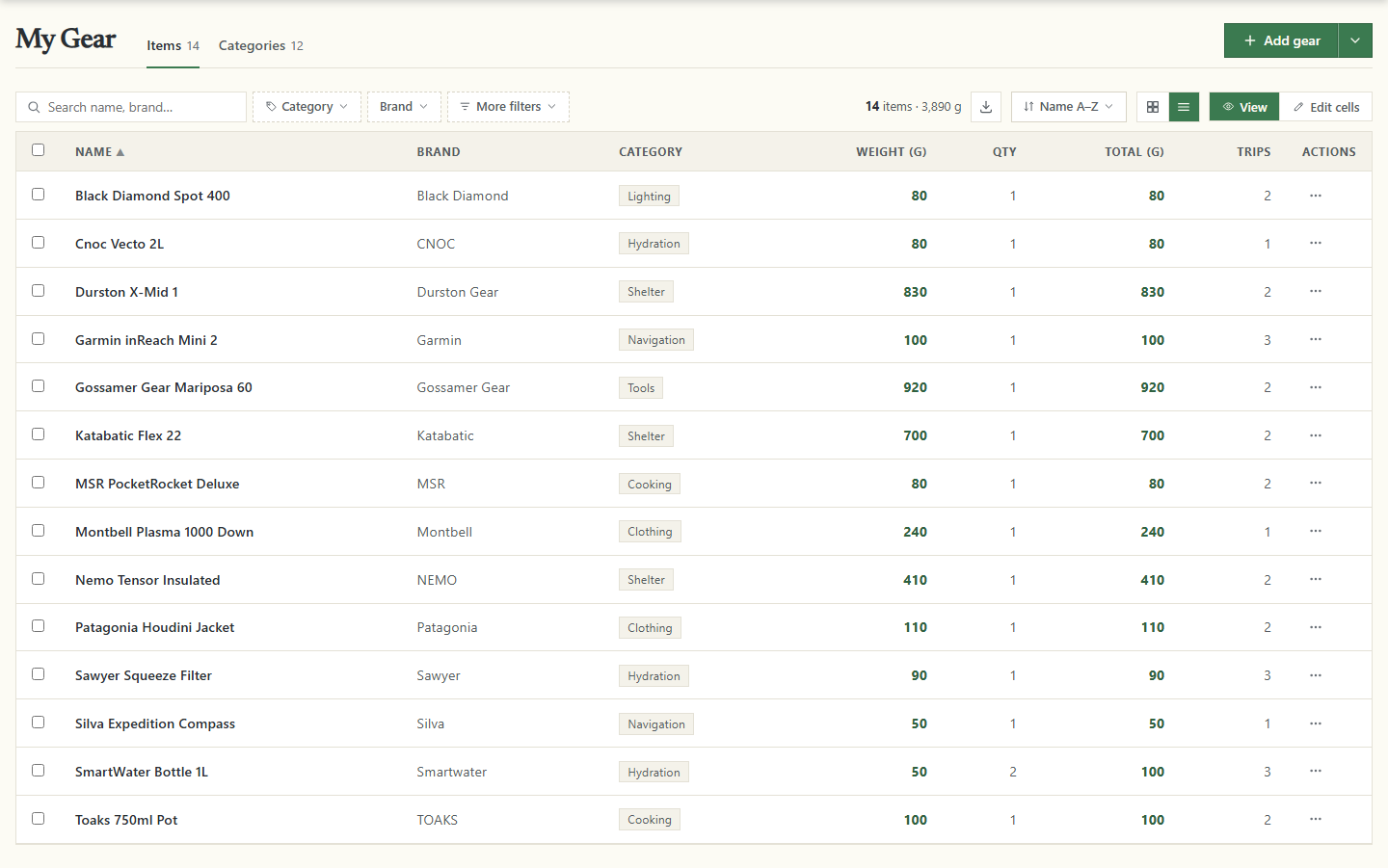
This one list is your whole inventory. A trip or a pack borrows from it rather than copying it, so one item can sit in several trips at once.
Add an item
The arrow next to Add gear opens three ways in.
- Add one item
- Opens the full form, with every field on it.
- Import from a file
- Pro only. Reads a CSV or Excel file, one row per item.
- Import from photos
- Turns photos of your gear into drafts you check first. On the free plan it reads up to 10 photos a calendar month.
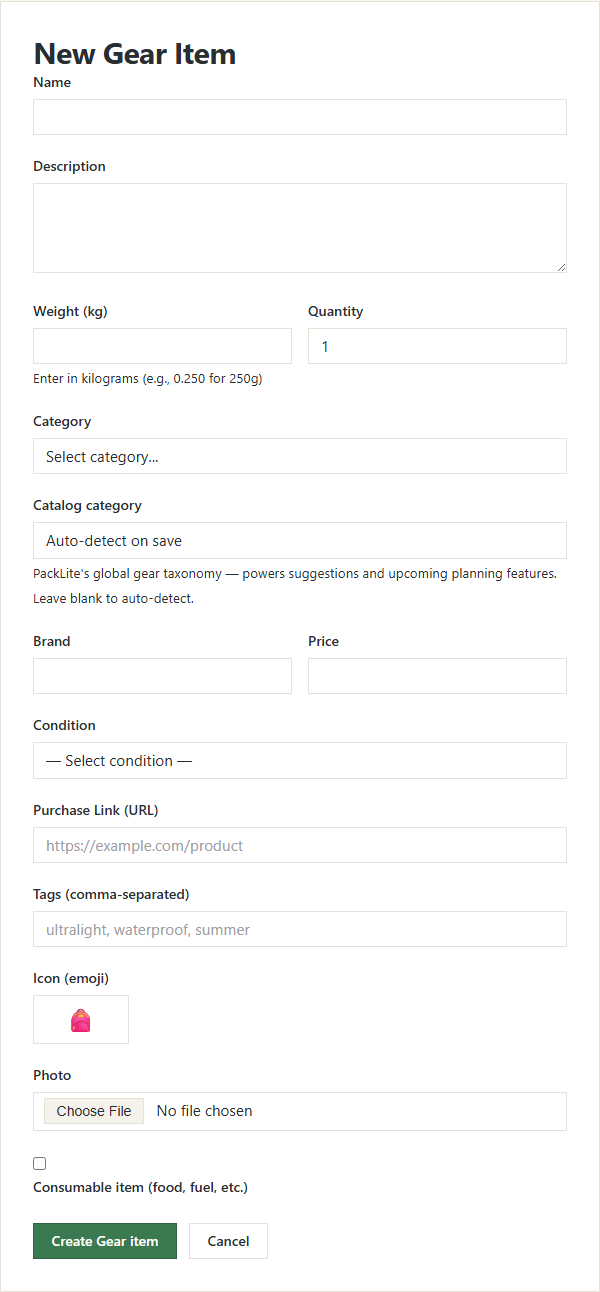
- Open the form. Choose Add one item. The page is headed New Gear Item.
- Give it the three things PackLite needs. Name, a weight and Quantity — the quantity a whole number above 0, the weight allowed to be 0. Everything else is optional.
- Enter the weight in grams or ounces. The field follows the weight unit on your profile: Weight (g) for kilograms or grams, Weight (oz) for pounds or ounces. The hint under it reads Per item. Change the unit on your profile. A 250 g stake bag is 250, or 8.82 in ounces. PackLite converts it, so totals still show in kilograms or pounds.
- Pick a category. Category starts on Select category... and offers the categories you have made. Leaving it empty is fine — you can sort the item later.
- Leave the catalogue to PackLite. Catalog category starts on Auto-detect on save, which matches the item to PackLite's own gear taxonomy from its name and details, when it finds a close enough fit.
- Add the rest if you want it. Description, Brand and Price are free to fill in. Condition starts on — Select condition — and offers New, Good, Worn and Retired. Purchase Link (URL) has to start with
http://orhttps://or the item is refused; Tags (comma-separated), Icon (emoji), Photo and Worn while hiking (clothes, shoes, poles), so not part of base weight are optional. - Save it. Create Gear item at the foot of the form adds it and opens the item's page with Gear item created successfully.
Auto-detect on save is true of a new item only. The icon and the catalogue match are worked out once, when the item is created, and only where you left the field blank. Renaming the item later matches nothing again.
Editing an item opens the same form under Edit Gear Item, where the weight field shows the item in your unit and Update Gear item saves the change.
Sort your gear into categories
Categories are your own, and they are the only ones the item form and the table offer you.
- Open the tab. On My Gear, choose Categories. What you have made is listed under Your Categories.
- Add one. Click New Category, then fill in Name and, if it helps you, Description. A name can be used once per account, upper and lower case ignored.
- Choose an icon, or don't. Icon starts on Auto. Left there, PackLite picks one from the name when you save.
- Save it. Save the form with the button at its foot.
- Change one later. Point at a row and Edit and a bin appear at its end. The bin asks before it deletes, and the count after Gear Items says how much the category holds.
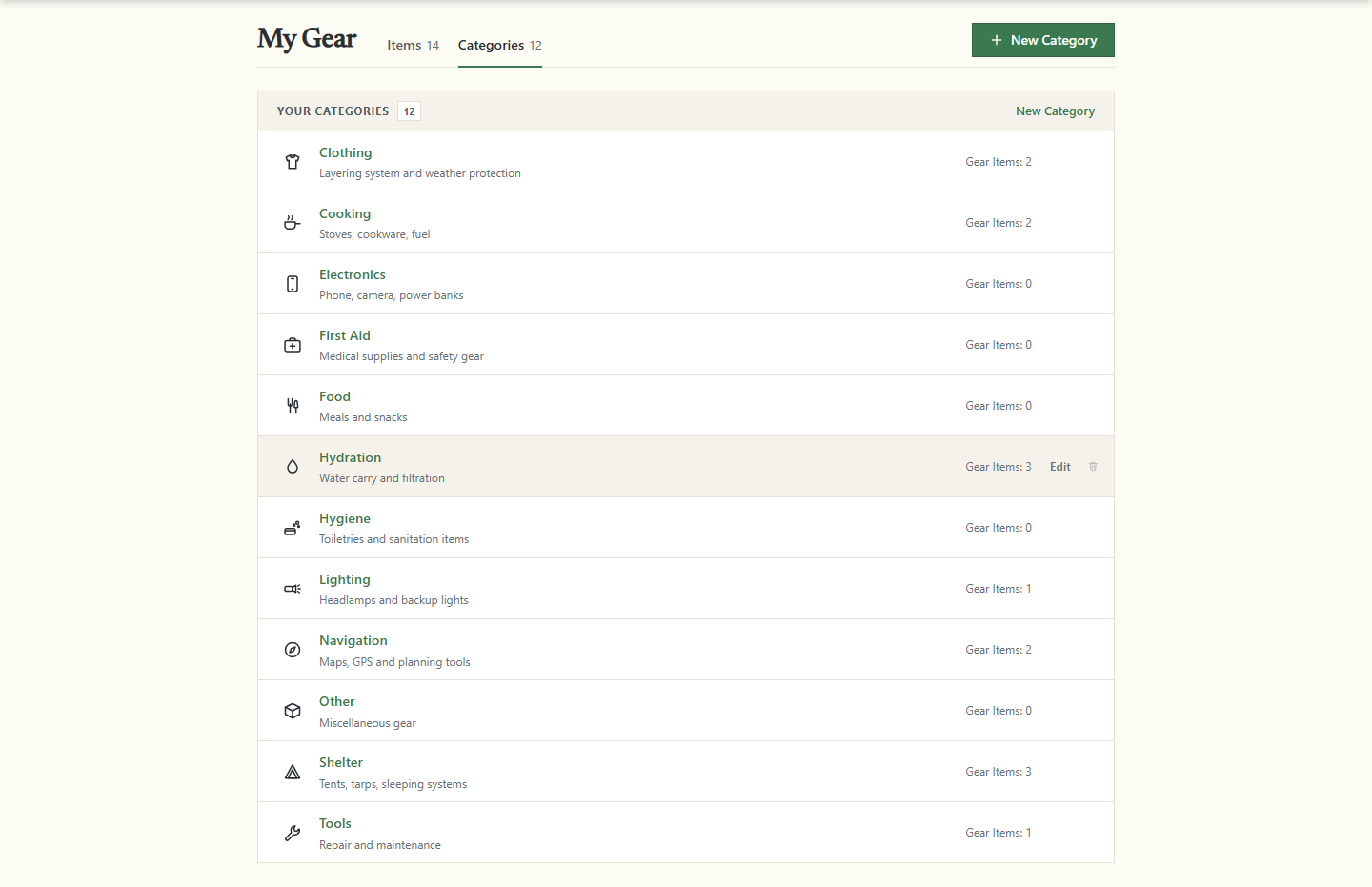
A category will not delete while any item is assigned to it. Its bin is greyed out and does nothing when clicked. Move those items elsewhere, or clear their category, and the bin works again.
A category's name is a link. It opens a table of just that category's gear, with the same Edit cells switch as the main list.
Find an item
The toolbar above the table is one form. Every change re-requests the page and lands in the address bar, so a view you use often can be bookmarked.
- Search. Search name, brand… matches the name, the brand and the description, upper and lower case ignored. It does not look at categories or tags. The list re-reads itself 300 milliseconds after your last keystroke.
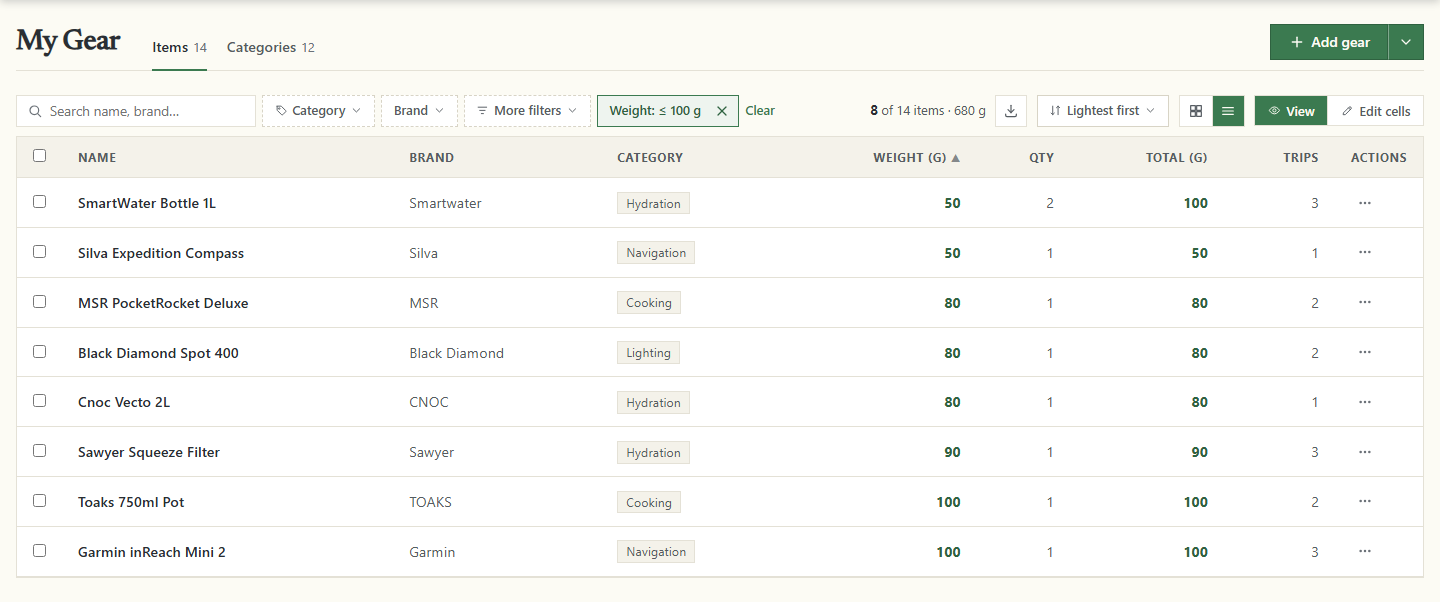
- Narrow it. Category and Brand are menus of what you own. More filters adds Weight (g) as a range in grams, Photo, and Usage with Unused and In use.
- Read the count. It shows what is left and what it weighs, as in 8 of 14 items · 680 g — the weight of the items on screen, quantities included.
- Sort. Sort offers nine orders, including Name A–Z and Lightest first. The list starts on Name A–Z, and the table's Name, Brand, Category and Weight (g) headers sort too.
- Start again. Every filter you set shows as a chip with an x that removes just that one, and Clear drops every filter at once.
The two icons after the sort button switch between Grid view and Table view; your choice is remembered, so the list opens as you left it.
Export what the list shows
The download icon writes a CSV of exactly what the filters and the sort have left — with nothing filtered, your whole inventory — named gear-<date>.csv. Its twelve columns are fixed and always English. On Pro the icon reads Export the listed items as CSV; on the free plan it reads Export CSV (Pro) and leads to the pricing page.
Change several items from the table
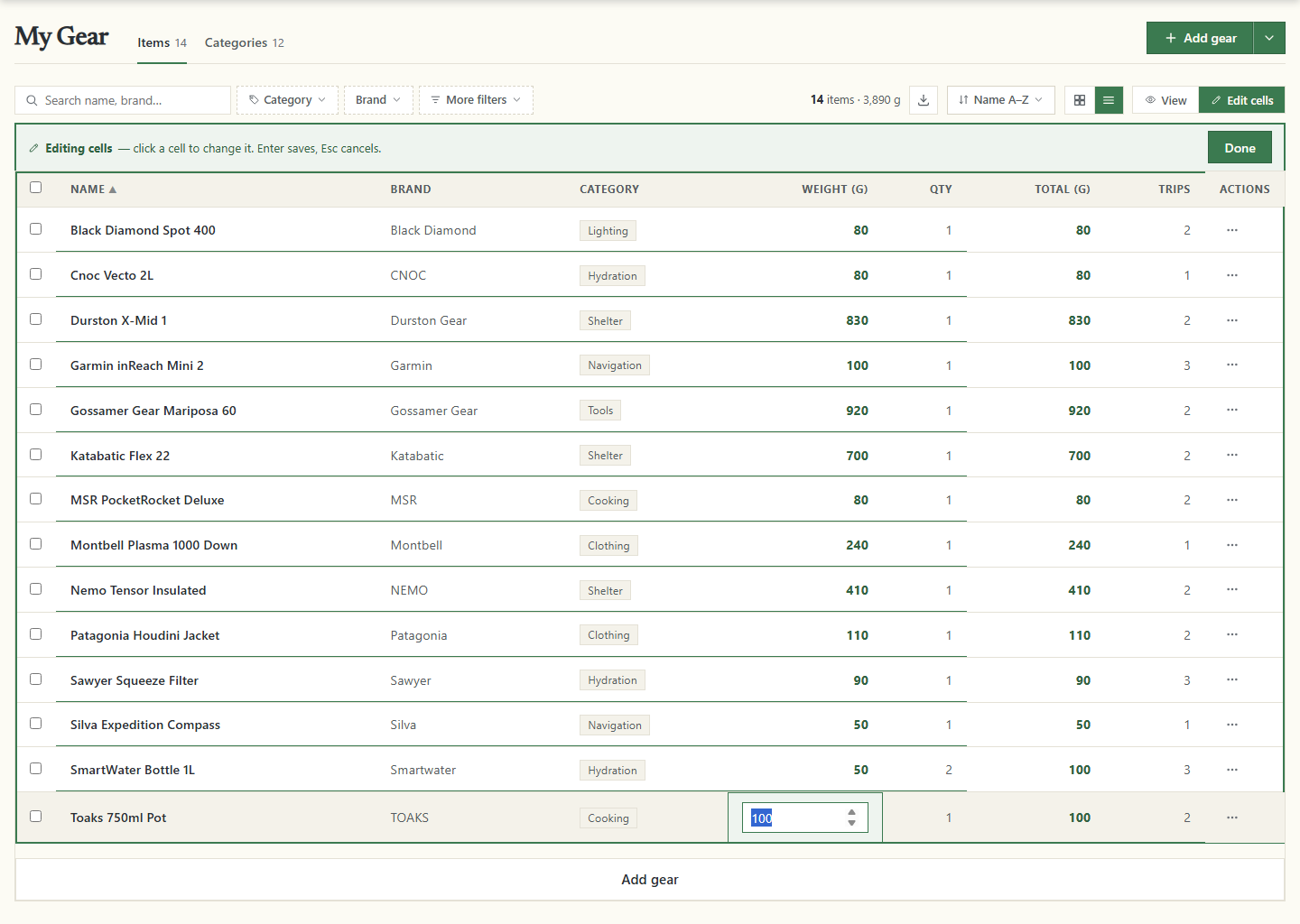
The table edits in place, so correcting ten weights does not mean opening ten forms. Name, Brand, Category, Weight (g) and Qty change in the cell. Total (g) and Trips are worked out for you and only refresh.
- Turn editing on. The switch above the table has View and Edit cells. Under Edit cells a single click opens a cell; under View a double click opens one.
- Type the new value. The bar reads Editing cells — click a cell to change it. Enter saves, Esc cancels. Under Edit cells, Enter also moves down the column and Tab across the row; a cell opened in View only saves. The Weight (g) column is read in grams.
- Clear a category. Pick — None — in the Category cell and the item keeps no category.
- Add a row. Add gear under the table appears in edit mode. It opens a row with Name *, Brand, a category menu, Weight (g) * and a quantity (starting at 1). That weight is whole grams, converted for you: an 80 g stove is 80. Save puts the item straight into the table, Cancel drops the row.
- Finish. Done puts the table back into View.
A refused change puts the old value back and says why in the cell.
The tick box at the start of each row selects it; in View, clicking anywhere quiet on the row does the same, and the header box is Select all. A bar rises from the bottom of the window as soon as anything is ticked.
- Category
- Opens Set category. Picking one moves every ticked row into that category at once.
- Phone Upload
- Pro only. Opens a page with a QR code; scan it and photograph the ticked items from your phone.
- Delete
- Asks once for the whole selection, then removes every ticked item.
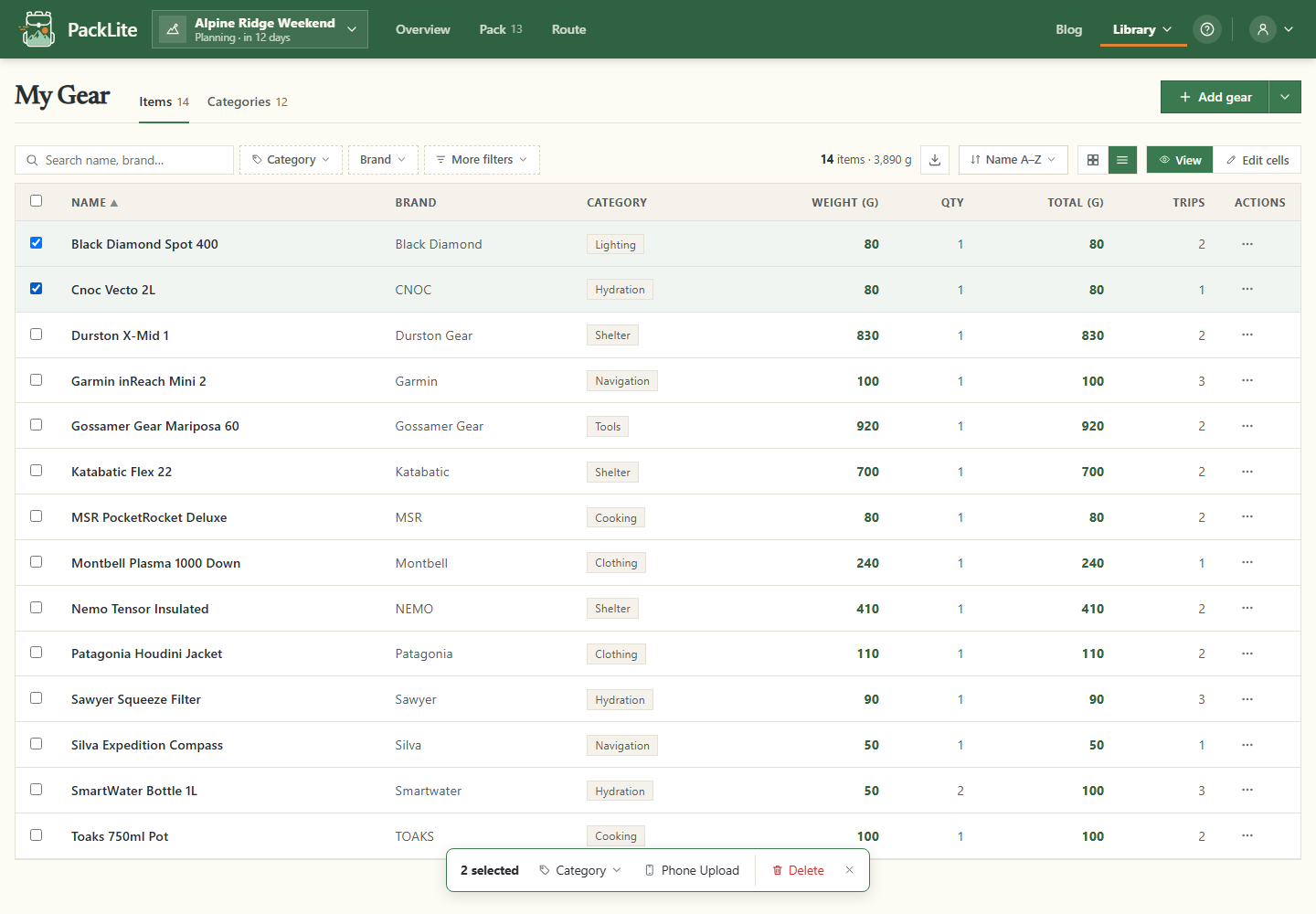
Deleting gear cannot be undone and reaches past the list: the item leaves every trip and pack holding it, and its photo goes with it. Tasks survive with the gear link emptied.
Your gear list now holds what you own, in your own categories, at weights every pack and trip in PackLite counts from. Open a trip's pack next and start pulling items into it from your gear list.