
Guide
Import your gear list from a spreadsheet
Bring a whole gear list into PackLite from a CSV or Excel file: match its columns, sort out unknown categories, check every item before it is added, and undo the import if it went wrong.
What you need first
- A Pro plan. On the free plan the import pages take you to Pricing with the note This feature requires a Pro subscription.
- Your gear list in a CSV file (.csv) or an Excel file (.xlsx or .xls), one row per item.
- A name and a weight for every item. A new item without a weight is not imported. The rest is optional: PackLite can also read brand, quantity, price, condition, description, purchase URL, tags and category.
Your file can keep its own column titles and weight unit. No item is added to your gear until you confirm the preview.
Upload your file
- Open the import. On Gear › Items, open the arrow next to Add gear and choose Import from a file. You can also use New import on Gear menu › Imports.
- Choose the file. Pick your spreadsheet in Select File.
- Upload it. Click Upload and Continue.
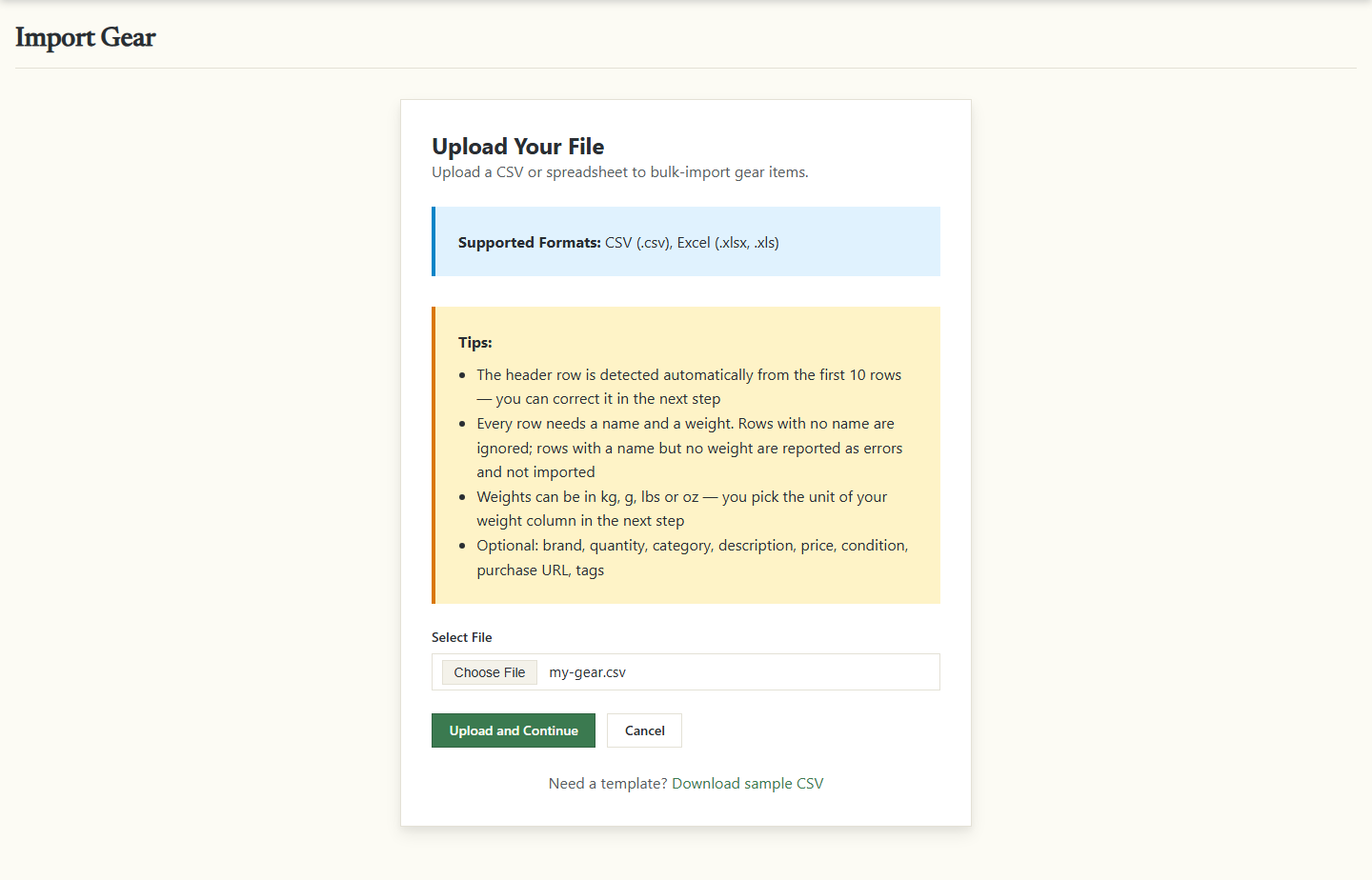
If PackLite cannot read the file, you stay on this page with a message that starts Could not read the file:.
Match your columns
Map Columns shows your first rows under Preview (first 5 rows). Below, each field under Gear Field has a menu of your columns under Your Column.
- Check the header row. Your titles don't have to be in the first row. PackLite picks the row with the most filled cells among the first 10 and shows it as auto-detected as row 1 or similar. To use another row, enter its number in Override row number:. It takes effect when you continue, so then use ← Back to mapping on the preview (Back to mapping if PackLite first asks about unknown categories) to match the columns from that row.
- Check the matches. Columns PackLite recognises by title, in English or German ("Weight", "Gewicht", "Kategorie"), are already picked and marked auto. Correct any wrong match and set unwanted fields to — skip —.
- Match the name. Name is marked required. Without it, PackLite asks you to map a column first.
- Pick the weight unit. Under Unit in your file, choose kg, g, lbs or oz. It starts on kg (kilograms), and PackLite converts every weight as it imports.
- Continue. Click Preview Import →.
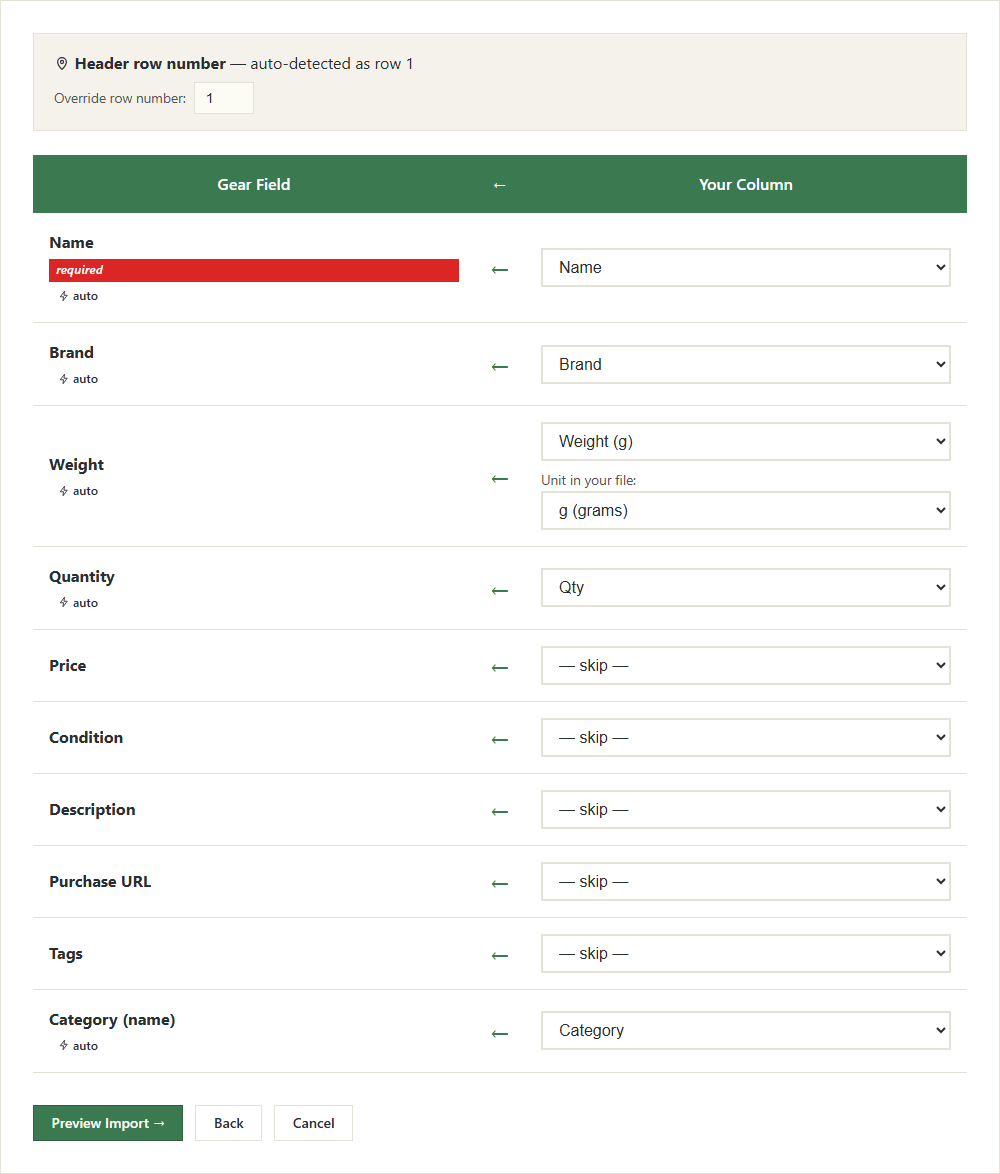
Check the unit before you continue. A grams column read as kg makes every item 1000 times too heavy.
How categories are matched
Values in your category column are compared with your own categories by name, ignoring upper and lower case. Your categories are listed under Available Categories. If every value matches, you go straight to the preview. If not, PackLite asks about the others first.
Resolve unknown categories
Resolve Unknown Categories lists each category name from your file that PackLite doesn't know, each with a menu.
- Choose an action for each name. The preselected option, such as Create new category "Sleep System", adds a category with that name. Under Map to existing category, pick one of yours instead. — Skip (no category) — imports new items without a category (an item you already have keeps its own).
- Continue. Click Continue Import. To use a different category column, go Back to mapping.
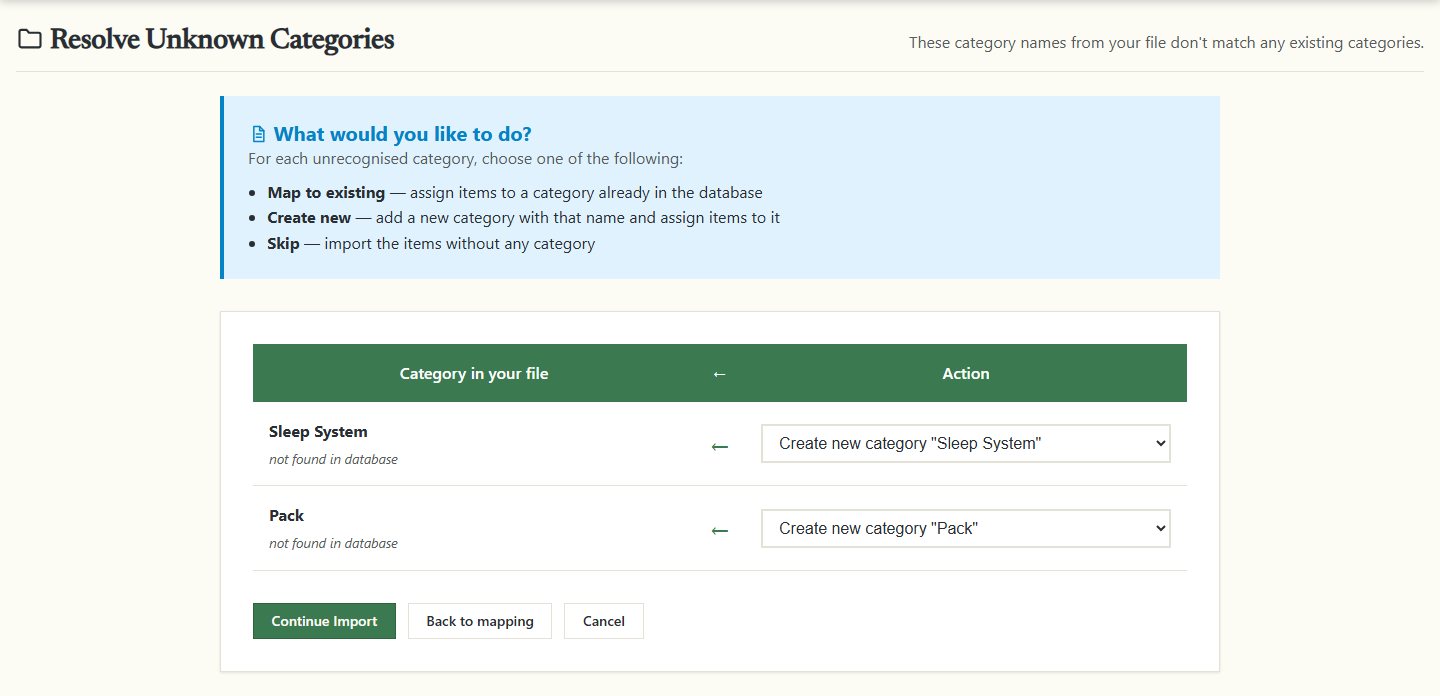
Continue Import creates the new categories straight away. They stay even if you leave the import unfinished or revert it later.
Check the preview and choose what happens to duplicates
Preview Import counts New items, Already exist for rows named like gear you have (ignoring case) and, if there are any, Empty rows (skipped). Tables list both groups with Name, Brand, Category, Weight (g), Icon and Catalog. A new item gets the icon and catalogue entry shown, where PackLite suggests one. An item you already have gets the icon only if it has none yet, and keeps its catalogue entry. Each table shows its first 50 rows. A row without a weight shows no weight in the Weight (g) column. A new one still counts under New items, and a box such as 1 row has no weight warns about it, but it is not imported when you confirm.
Weights here are always in g. A 395 g jacket showing 395000 means the unit is wrong: go ← Back to mapping and change it.
When rows already exist, a box such as 1 duplicate(s) found lets you choose. Skip duplicates is selected and leaves your items as they are. Update duplicates overwrites them with your file's values, such as weight and category. An empty cell, or a category you chose to skip, leaves the current value as it is.
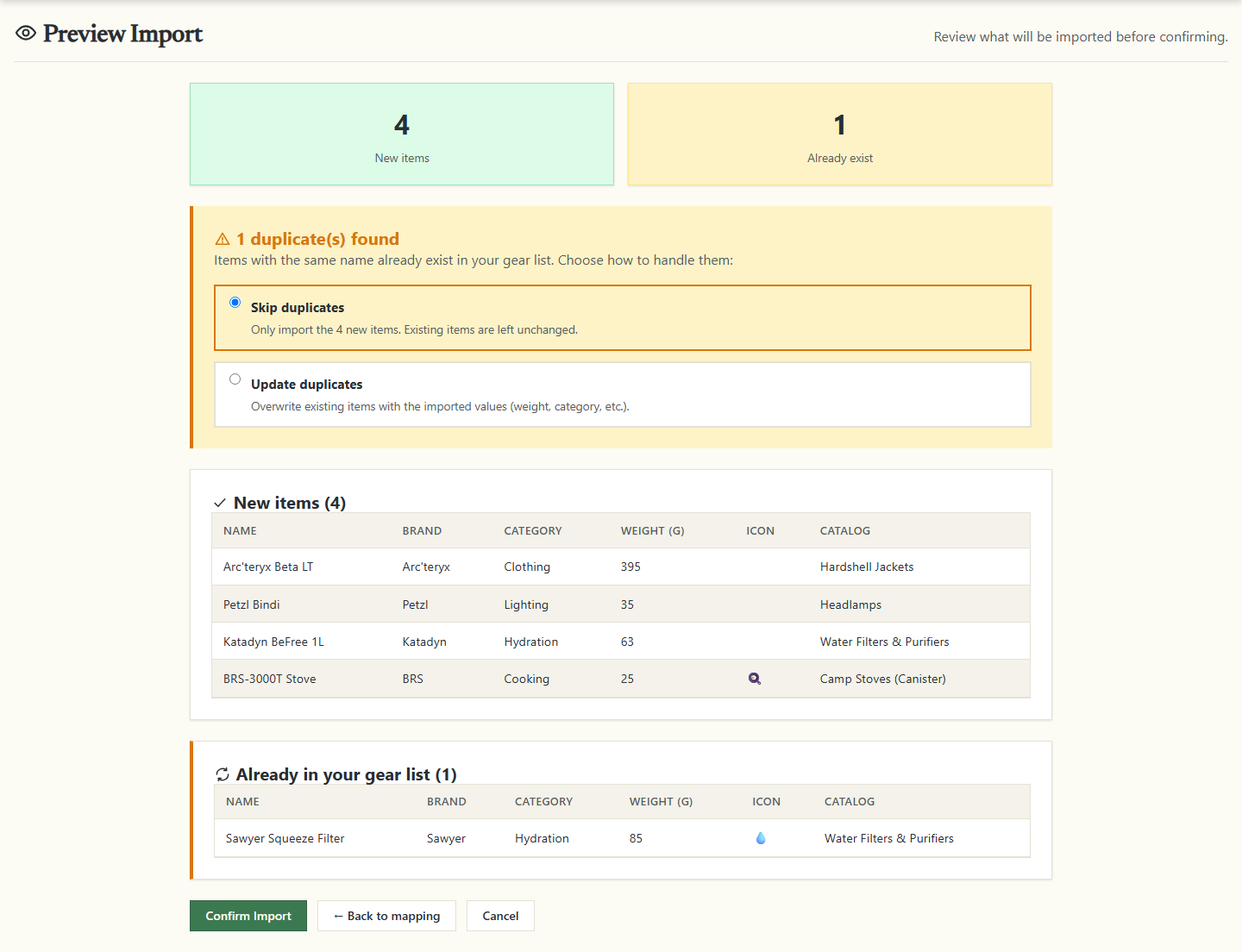
Revert does not undo Update duplicates. It removes only items an import created, so updated items keep your file's values.
If no row has anything to import, the page says Nothing to import. Every row in the file is empty or has no name. in place of the Confirm Import button.
Confirm the import
- Start it. Click Confirm Import. Import in Progress opens and refreshes every few seconds while the import runs in the background.
- Read the result. Import complete! says how many items came in, updated duplicates included. View Gear opens your gear list.
While Cancel Import is shown, the import has not started. Cancelling there removes the import and anything it created.
A row PackLite can't save doesn't stop the others. The finished page lists up to five problems after Some rows had issues:. If the whole import fails, Try Again takes you back to the upload.
Undo an import
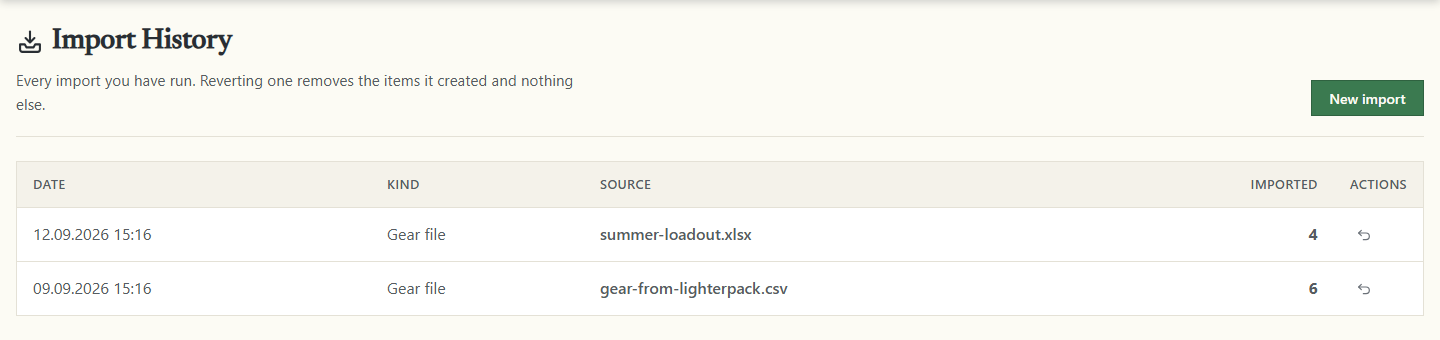
Gear menu › Imports lists every import you have run, newest first, gear files and itinerary pastes together. A gear file shows as Gear file under Kind, with its file name under Source.
- Revert it. Click Revert, the U-turn arrow under Actions.
- Confirm. PackLite asks first, then shows how many items it deleted, as in Import undone: 5 item(s) deleted.
Revert cannot be undone. It deletes every item the import created, including your edits since, and takes them out of every pack and trip.
Your gear list is now in PackLite, each new item with an icon where PackLite can suggest one. Open Gear › Items to check the weights and fill in what your file lacked, then start packing.