
Guide
Review your gear after a trip
After a trip, go through the gear you packed, mark what you didn't use and what needs repair, write down what to change next time and keep the trip as a read-only record, or mark it reviewed without the gear check.
What you need first
- A finished trip: one whose end date is before today and that isn't reviewed yet. Only then does its Overview show the Trip Review card.
- Any plan. Reviewing a trip and the review emails are free. Pro only: the Tasks pages, where the repair tasks from a review end up, and on a reviewed trip the Repair Tasks card and the card for saving its gear as a pack.
Finished trips are listed under Trips › Past. Once you have reviewed a trip, a Reviewed tab appears next to it and your reviewed trips move there.
Review emails
If product emails are on, PackLite emails you about each trip that ended in the last 30 days and isn't reviewed yet. The first email is "How did your trip go? Review your gear — Säntis Day Loop", with the button Start Gear Review. Up to three reminders follow, at least 7 days apart, with the button Continue Review. The emails stop once the trip is reviewed, after four emails, or when the trip ended more than 30 days ago.
The email's button signs you in and opens the review, starting it if you haven't yet. If another account is signed in on that browser, you land on the home page instead.
To stop these emails, open More, then Profile & settings under your name, click Edit Profile, untick Send me product reminders and tips (e.g. a reminder to review a completed trip, getting-started help) and click Save Changes. You can also use Unsubscribe from these emails at the foot of the email.
Open the review from the trip Overview
The Trip Review card sits at the top of a finished trip's Overview, with the line How did your gear perform? Review each item after your trip.
- Open the trip. On Trips › Past, click the trip you want to review.
- Start the review. Click Start Review. The review opens on its first step with the message Review started. Evaluate your gear below.
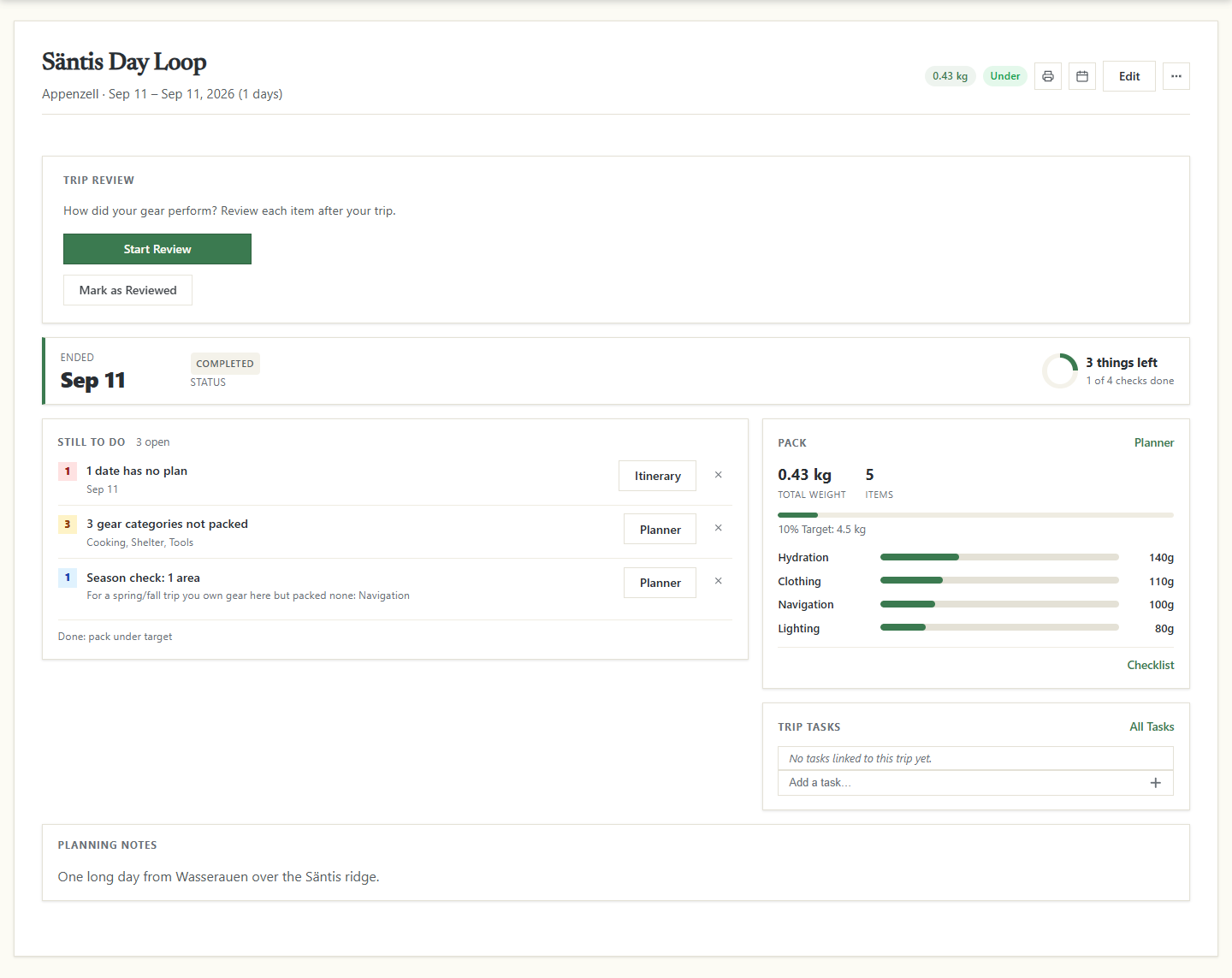
Once a review is started, the card shows Review Details in place of both buttons. It reopens the review on its first step, with everything you have ticked and written so far. Mark as Reviewed asks Are you sure? and skips the gear check; the section on marking a trip reviewed below says what it does.
Starting a review takes a copy of the trip's gear as it is at that moment. From then on, changing or deleting an item in your library doesn't change the trip, and gear you add to the trip afterwards isn't part of the review.
Go through your gear, category by category
The review has one step for each gear category on the trip, in alphabetical order, and a last step for your notes, labelled Notes at the top and headed Wrap-up. The label at the top shows where you are, such as 2 / 7 — Cooking. Gear without a category comes under Other. Each item stays in the category it had when you started the review. A trip with no gear has only that last step.
Every item starts ticked Used and not Needs Repair.
- Mark what stayed in the pack. Untick Used for anything you carried but didn't use.
- Flag what needs fixing. Tick Needs Repair for anything that broke or wore out.
- Add a note. Write what happened in the Notes… field under the item.
- Move on. Click Next → for the next category, or ← Back to return to the one before.
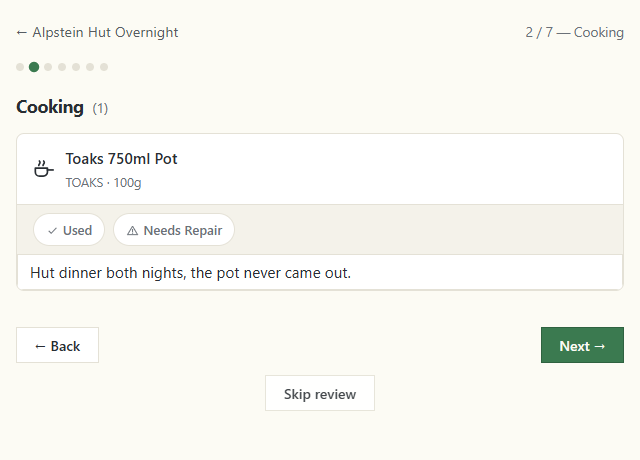
Each tick is saved as you make it, and a note is saved when you leave its field. You can close the page at any time and carry on later with Review Details.
Add your notes and complete the review
The last step, labelled Notes at the top (7 / 7 — Notes) and headed Wrap-up, has three fields for what you'd change next time: Missing Gear, Weight Optimisation Ideas and General Notes. Each is saved when you leave it.
- Write your notes. Fill in the fields you have something for; all three are optional.
- Finish. Click Complete Review.
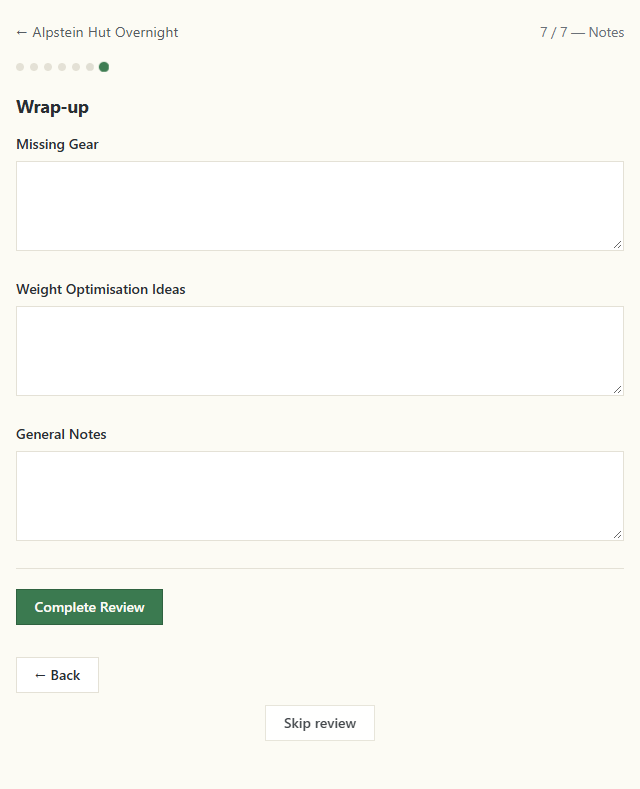
Complete Review saves everything and then, for each item marked Needs Repair:
- sets the condition of that gear in your library to Worn, if the gear is still there;
- creates a task such as Repair Black Diamond Spot 400, linked to the trip and the gear.
The tasks are created on every plan, but you need Pro to see them on the Tasks pages. The trip is then reviewed, and you land on its review summary.
A review can't be undone. Once you complete it, the trip can no longer be edited or deleted, the planner is closed to it, and its itinerary and travel become read-only.
Mark a trip reviewed without the gear check
If you don't want to go through the gear, click Mark as Reviewed on the Overview, or Skip review at the bottom of any review step. Both ask Are you sure? and then show Trip marked as reviewed. The trip becomes read-only, as after a completed review.
- A review is in progress
- It is finished as it stands. Every tick and note saved so far is kept, wrap-up notes included. No repair tasks are created and no gear is set to Worn, even for items marked Needs Repair.
- No review is started
- The trip is closed without a gear check: every item counts as Used and none as Needs Repair.
Read a reviewed trip
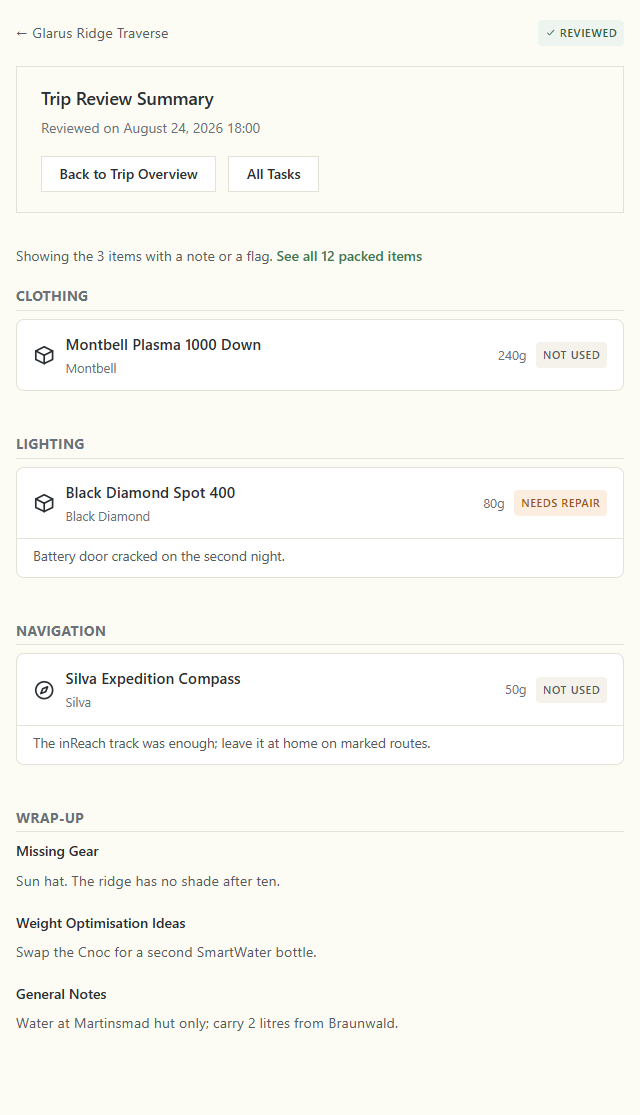
The review summary opens after Complete Review, and from Review Details on a reviewed trip's Overview. Under Trip Review Summary it shows Reviewed on with the date you finished, and the buttons Back to Trip Overview and All Tasks. All Tasks is a Pro page; on the free plan it takes you to the pricing page.
The summary lists only the items that need your attention: those marked Not Used or Needs Repair, and those with a note, grouped by category. A line such as Showing the 3 items with a note or a flag. says how many, and See all 12 packed items takes you to the full list on the Overview. Your wrap-up notes follow under Wrap-up.
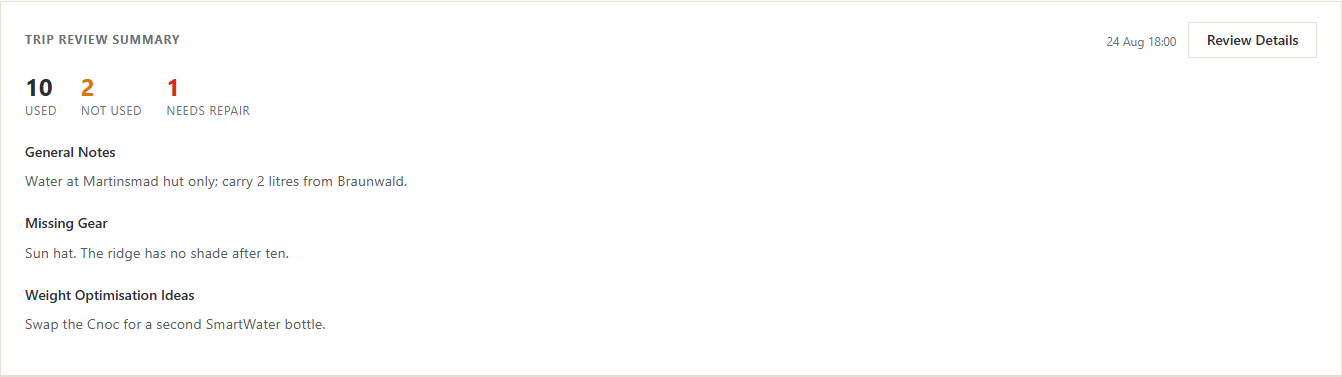
A reviewed trip's Overview opens with This trip has been reviewed and is now read-only. Its Trip Review Summary card counts the items Used, Not Used and Needs Repair and repeats your wrap-up notes.
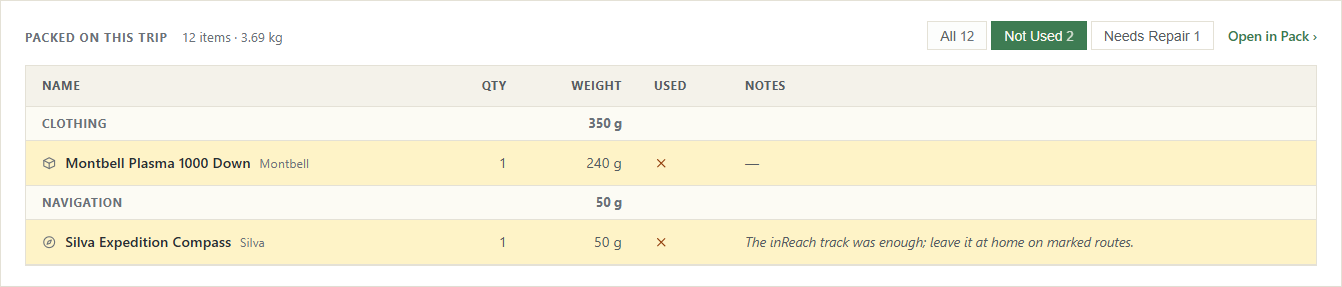
Further down, Packed on this trip lists everything you took, with a Used column. The filters All, Not Used and Needs Repair narrow the list, each with its count.
On Pro, the reviewed Overview also has a card to save the trip's gear as a new pack and the Repair Tasks card with the tasks from the review.
You now have a record of how your gear did on the trip: what you carried for nothing, what needs fixing, and what to change before the next one.