Guide
Build a pack you can load into any trip
Build a pack once from your own gear, give it a transport mode that sets its weight limit, and load it into any trip instead of picking gear again.
What you need first
A pack is a named set of your own gear, with a quantity and a note per item. You build it once in the library and load it into as many trips as you like.
- Gear in your library. A pack only points at items you already have, so add them under Gear › Items first.
- A trip, if you want to load the pack into one straight away.
- Room on your plan. Free accounts keep 3 packs, Pro unlimited, and every pack counts, whether you start it here, from a template or from a trip. At the limit New Pack gives way to Upgrade to Pro →.
Gear › Pack lists opens My Packs. Yours sit under My packs; the Templates tab is the ready-made gallery, which this guide leaves aside. Each card shows the pack's weight against its limit, as a bar and as a note.
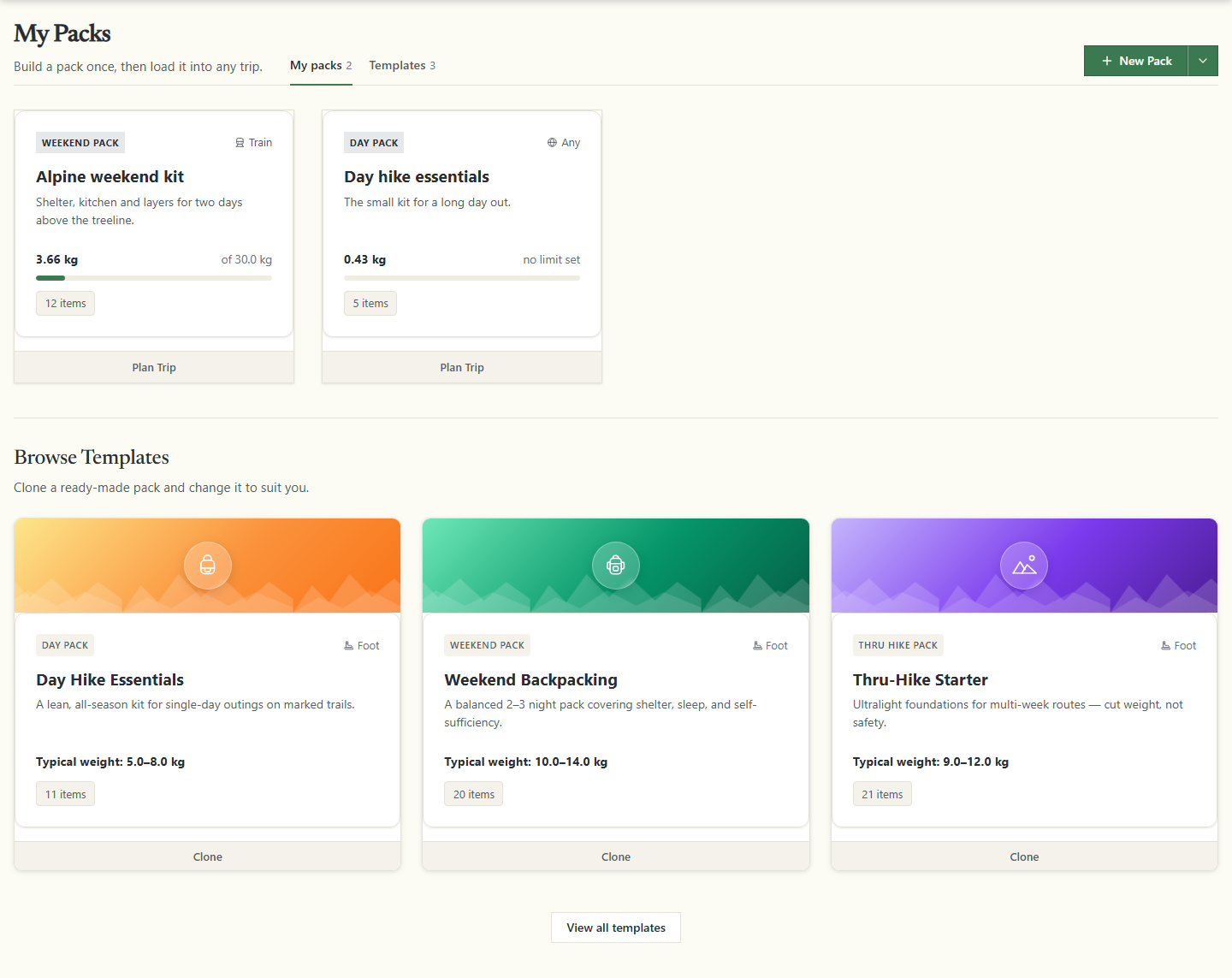
The arrow beside New Pack offers another way to start: From a template opens the template gallery, where you can copy a ready-made pack into your list.
Create a pack
- Open the form. Click New Pack.
- Name it. The name is the only thing PackLite insists on.
- Choose the pack type. Pack Type offers five fixed choices: Day pack, Weekend pack, Hiking pack, Thru hike pack and Custom. The type is a label for you; it sets no limit.
- Choose the transport mode. Transport Mode offers Flight, Train, Car, Bike, Foot and Any. This is the choice that matters: it sets the weight limit when you save.
- Set your own limits, or leave them empty. Weight Limit (kg) shows Auto from transport mode while it is empty, and Max Single Item (kg) shows Optional. A figure you type is kept as it is.
- Save. PackLite fills the empty limits from the transport mode and opens the new pack.
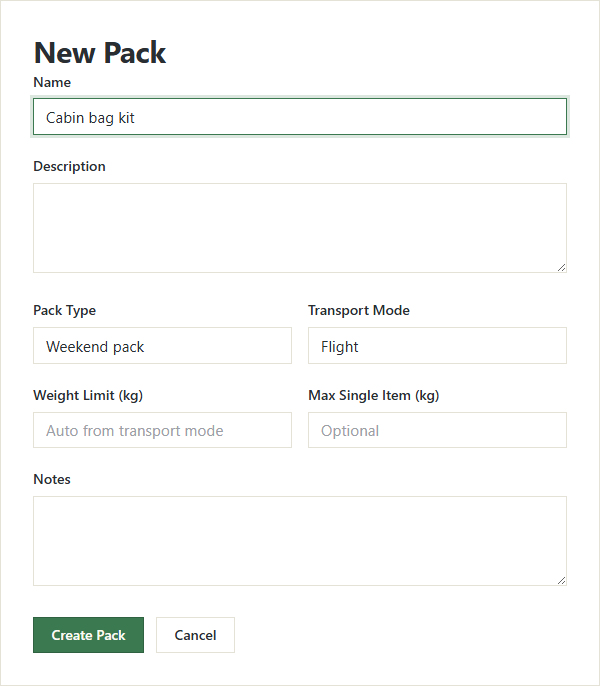
The menus start on Custom and Any, so leaving them untouched saves a pack with no weight limit.
Transport modes and their limits
- Flight
- 8 kg in total, and 8 kg for any single item.
- Train
- 30 kg in total, with no limit on a single item.
- Bike and Foot
- 15 kg in total, with no limit on a single item.
- Car and Any
- No default limit. A new pack, or one whose limit fields you clear, has no limit unless you type one. The pack's status then reads Unknown and its card says no limit set.
A saved limit, even one PackLite set for you, stays until you clear the field. Switch a 30 kg train pack to flight and it keeps 30 kg, not the 8 kg you would expect; switch it to car and it still keeps 30 kg. Clear the field and save again to take the new mode's default.
Once the pack exists, the header of its page holds Edit, which reopens this form, and Delete, which asks Are you sure? and then removes the pack alone: your gear stays in the library, and a trip you already loaded it into keeps its list.
Add gear to the pack
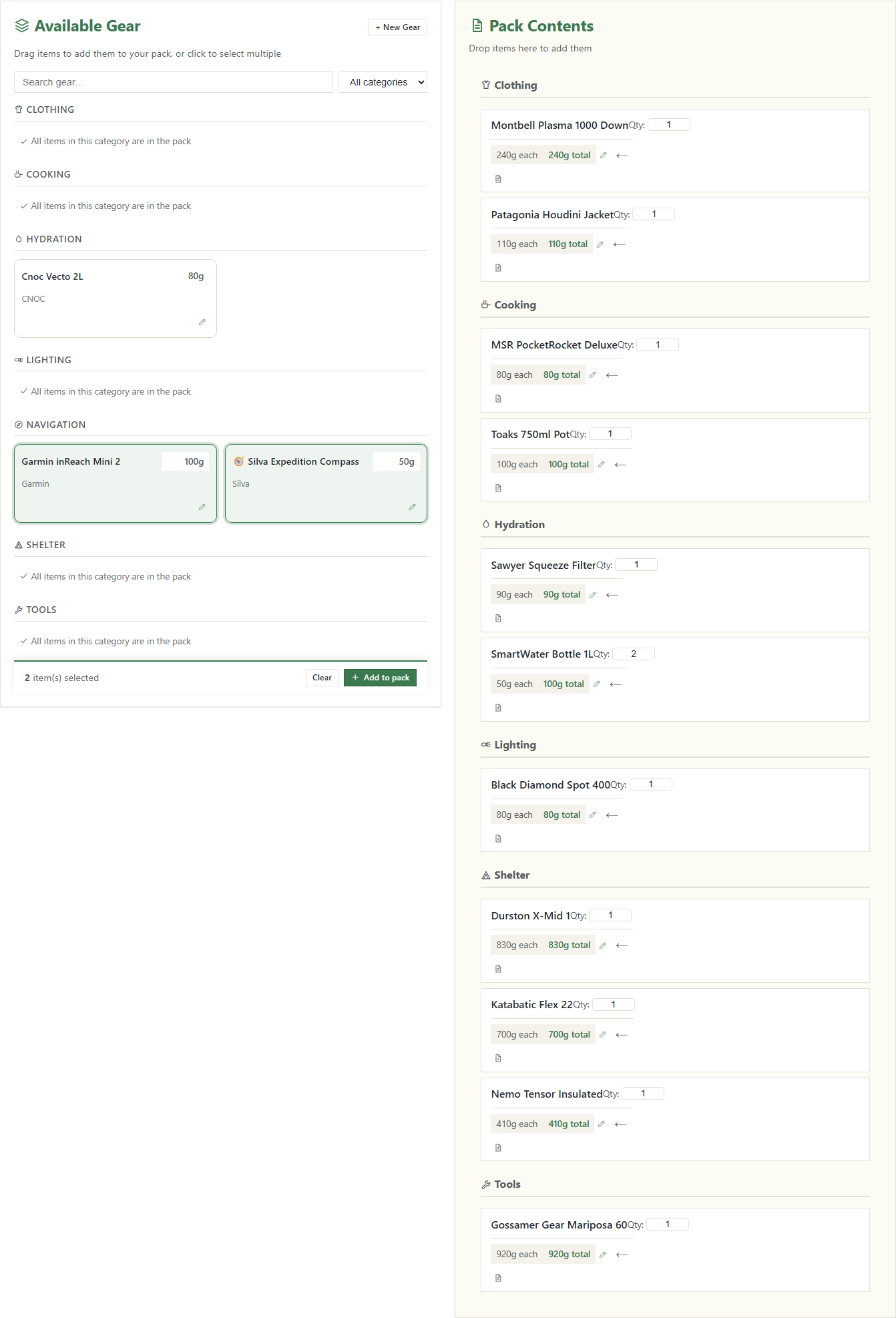
The pack page opens on its planner: Available Gear on the left, Pack Contents on the right. The left panel is grouped by category and lists only gear this pack does not hold yet, so a category with nothing left to give shows All items in this category are in the pack.
- Pick the items. As the hint says, Drag items to add them to your pack, or click to select multiple. A click only marks a card; nothing is added yet.
- Add them. Once something is selected, a bar appears counting your choice, as in 2 item(s) selected. Click Add to pack and the page reloads with the items on the right.
- Set the quantities. Each row has a Qty: field, saved as soon as you change it. One is the floor: take an item out rather than counting it down to zero.
- Add notes, or take something out. The note button opens a field for that row, saved when you click away. The ← button, Remove from pack, sends the item back to the left.
A pack holds no gear of its own — it points at your library. Correct an item's weight there and every pack holding it changes with it; delete the item and it leaves every pack without a word.
Missing something? + New Gear in the header of the left panel, and the pencil on any packed row, open the gear form.
Check the weight and the limit
Three cards sit above the planner. Total Weight adds each item's weight times its quantity, and repeats the limit underneath on a Limit: line. Total Items counts quantities, not rows: eleven rows holding two water bottles count as twelve. Status compares the total with the limit, and reads Unknown while there is no limit to compare against.

A Transport Warnings box appears above the cards when the pack is over its total limit, or holds an item heavier than the single-item limit, and names what is wrong. That box is the signal to trust.
Don't read Status on its own. It still says Close at up to 10% over the limit, while the bar on the pack card has already turned red.
The View: menu under the cards switches what the page shows. Nothing is saved; move between the views as you like.
- Add Gear
- The two-panel planner, where you change what is in the pack.
- Packed Items
- What is in the pack as one list. The Category, Name, Notes and Weight headings sort it.
- Unpacked Items
- The gear in your library that this pack does not hold.
- Statistics
- Weight by Category, each category with its share of the total.
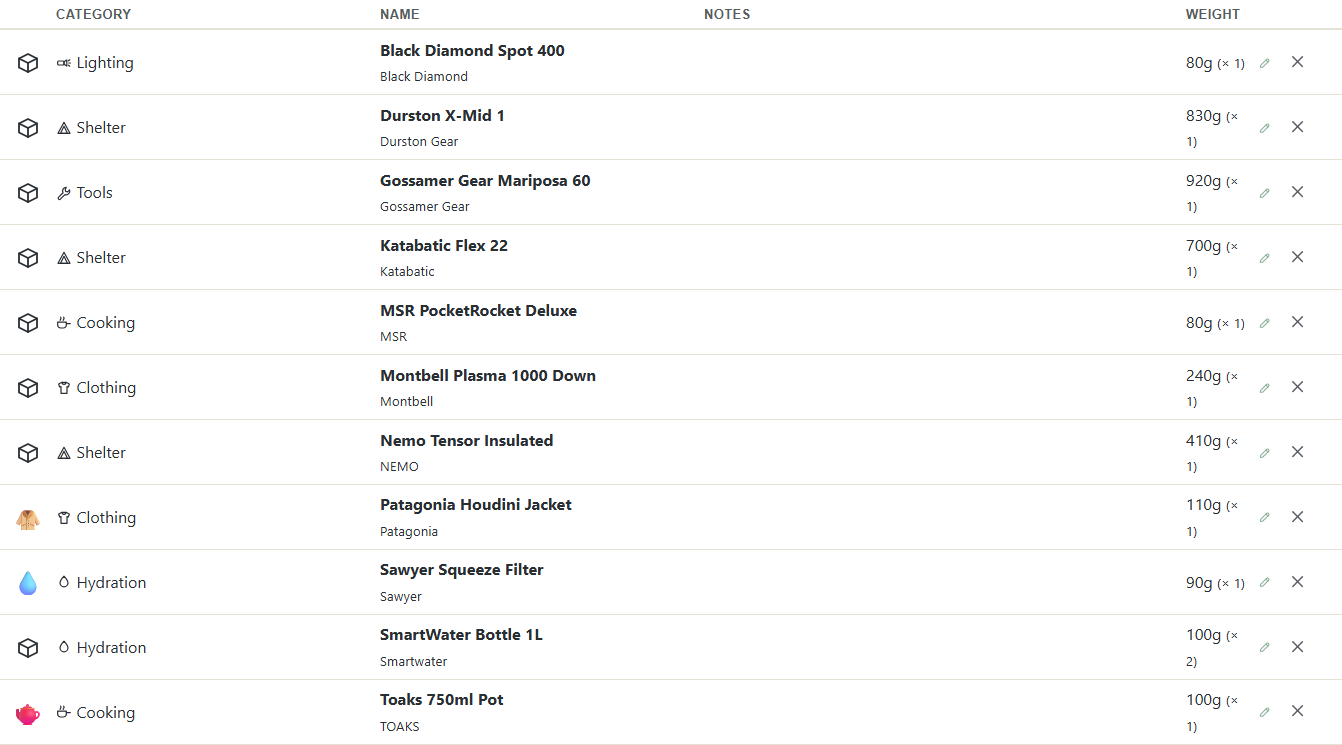
Optimize Weight in the header opens a separate Pro page that ranks the items by weight. It counts rows rather than quantities, so its item count can be lower than the one here.
Use the pack for a trip
- Load it into a trip you have. On the pack page, Load this pack into a trip: lists your trips that are still open to changes. A trip you have reviewed is read-only, so it is not offered. Choose one and click Load into Trip →.
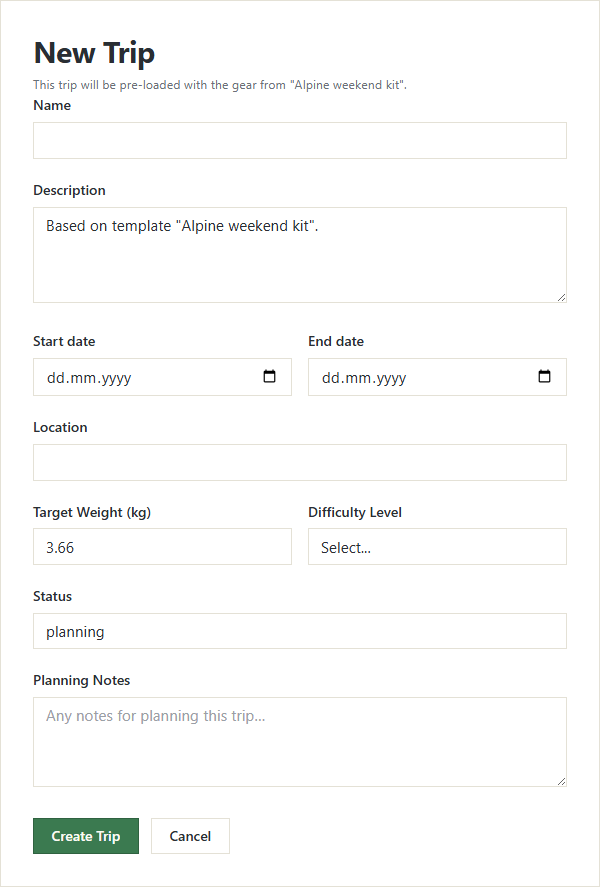
- Or start the trip from the pack. Plan Trip on the pack card opens the new-trip form with the note This trip will be pre-loaded with the gear from "Alpine weekend kit"., a description and a Target Weight (kg) filled in, and the name left to you. The gear is copied once you save the trip.
- Or pull it in from the trip. The first step of a trip's planner, Start your pack, holds the same list of your packs and a Load pack → button.
Loading only adds. Gear the trip already carries keeps its own quantity and notes, so running the same load twice changes nothing.
The trip's list and the pack are copies, not the same thing: changing one leaves the other alone. The journey back sits in the same step of the planner, where Save current selection as pack: turns what a trip carries into a custom pack travelling by any mode — no weight limit, quantities copied, though the notes on each item are not copied.
You now have a pack you can load into any trip, with its weight measured against the way you travel. Build a second one for another transport mode and the same library gives you a cabin-bag kit and a train kit side by side.